

The idea of playing games together on a video call confused a lot of people when remote hangouts first became the norm. Now it's second nature for millions of friend groups. But there are still friction points — lag, audio delays, screen share confusion — that make some sessions more frustrating than fun. Here's how to eliminate all of them.
The Golden Rule: Everyone Plays on Their Own Device
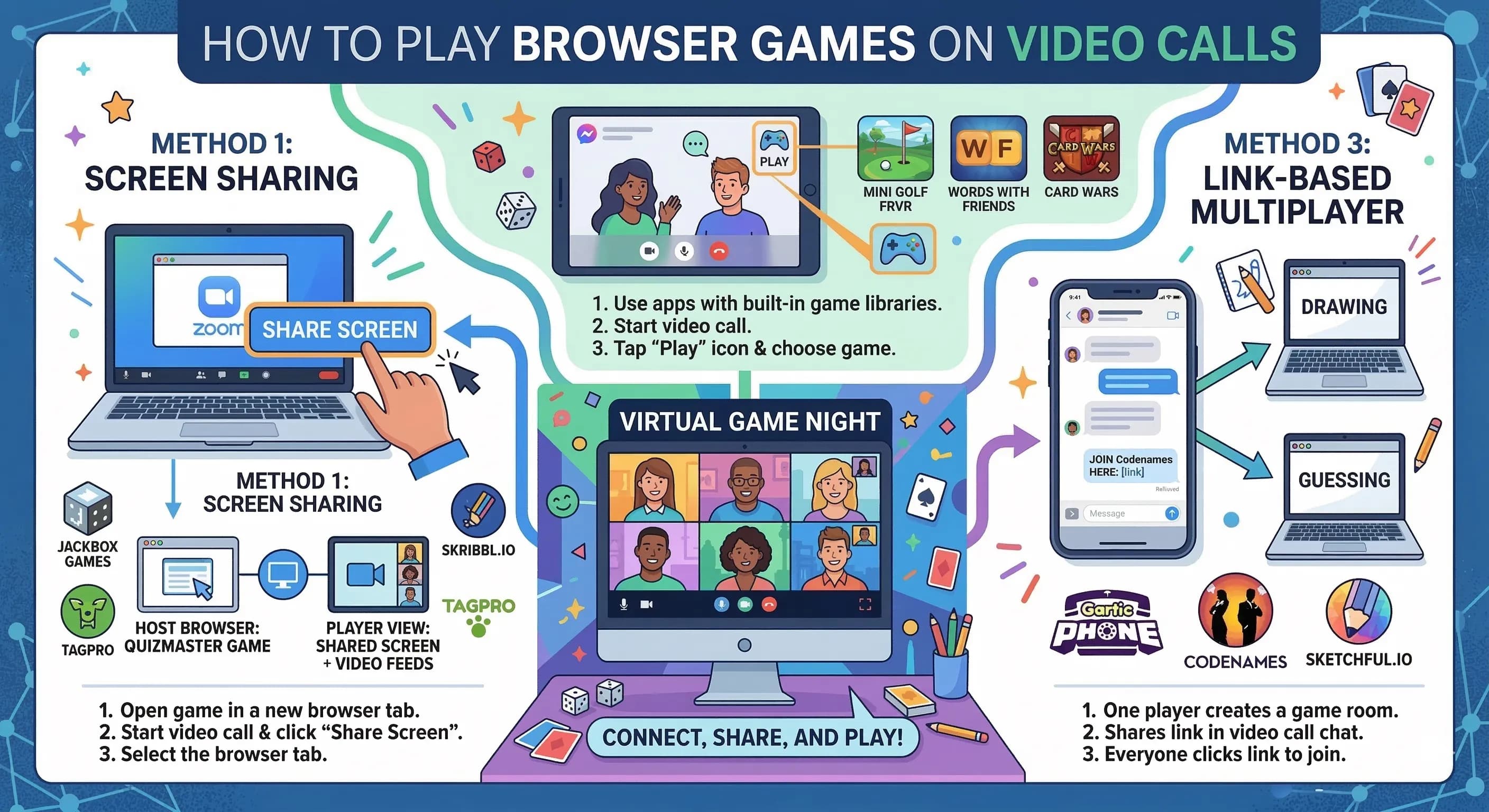
The number one mistake people make is trying to run the game on one person's screen while everyone else watches. This works poorly for any interactive game. For browser-based games like Word Impostor, everyone should have the game open on their own device. Each player joins the same room independently. The video call is just for voice communication — the game happens in each person's browser.
This setup eliminates all the "I can't see your screen clearly" and "the screen share has a two-second delay" problems immediately. Everyone has a live view of their own game state, the host deals with their own audio, and the voice call just handles the conversation.
Setting Up Word Impostor on a Video Call
Here's the complete setup process — it takes about two minutes:
- Start your video call as normal on Zoom, Meet, or Discord.
- The host opens a separate browser tab and goes to wordimposter.com.
- Create a game room, copy the invite link, and paste it into the video call chat.
- Everyone clicks the link in the chat and joins on their own browser/device.
- Host starts the game when everyone's in.
- Play happens in each person's browser independently. Voice communication happens through the call.
That's it. The entire setup is done in the time it takes for everyone to join the call.
Discord: The Best Platform for Game Nights
Discord has the best audio quality of the major platforms for group games. The voice processing suppresses background noise well, there's no 40-minute meeting limit, and you can have dedicated game-night channels where the Word Impostor room code lives pinned at the top. If your group already uses Discord, it's clearly the best choice.
Zoom: Works Well With One Limitation
Zoom works fine for browser-based game nights, but note: the free plan limits group calls to 40 minutes. For multiple rounds of Word Impostor, that's cutting it close. The Pro plan eliminates this limitation. Alternatively, start a new call when the timer runs out — annoying but functional.
Zoom's screen share is useful if you want to show something to the group (like the results at the end of a round), but again — for the actual gameplay, everyone should have their own browser tab open, not watching a shared screen.
Google Meet: Clean and Simple
Google Meet has no time limit for one-on-one calls and generous limits for group calls with Google accounts. The interface is clean and familiar to most people. Audio quality is good. It lacks Discord's dedicated gaming features, but for an occasional game night it's perfectly serviceable.
Managing Audio During Games
The biggest audio challenge during browser-based game nights is crosstalk — everyone talking at once during the discussion/accusation phase. A few simple rules help:
- Designate one person (usually the room host) as the round moderator who calls on people to speak during chaotic moments.
- Use push-to-talk if your group gets loud enough that background noise becomes an issue.
- During the one-word clue phase, have each player unmute, say their word, and mute again to keep the audio clean.
Mobile Players: Extra Considerations
Some of your players will join on phones. For Word Impostor, this is completely fine — the game is fully mobile-responsive and works well on any modern smartphone browser. The only thing to tell mobile players: open the game link in their phone's browser (Chrome, Safari), not within the video call app's built-in browser, which sometimes has quirks.
For the video call itself, phones work perfectly well in listening mode during the game. Players don't need to be on camera while playing — they just need the audio.
Ready to run your first video call game night? Create a Word Impostor room, paste the link into your call chat, and give everyone this article to explain the process. Then check out our full game night hosting guide for everything else you need to know.